This guide will explain how to view leads and/or credit applications (depending on your permissions) in the back end of your Dealer.com website.
- Login to Dealer.com: https://apps.dealer.com/
- Use the credentials sent to you. If you do not have any or need some for a new user, email irc@lithia.com to request them.
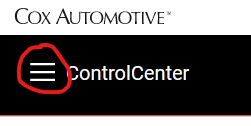
- Click on the 3 bars at the top left of the screen
- Select Leads, then All Leads
- From there, you will be able to see all leads from the website. Depending on your permissions, you may also see credit applications in the list on the left hand side.
- You can search for a specific lead using the search bar on the top left

- You can search for a specific lead using the search bar on the top left
- To see ONLY credit applications
- Near the search bar on the top left, click Advanced

- In that screen, in the Lead Categories section, check Finance

- At the bottom middle, click search

- Near the search bar on the top left, click Advanced
- To view the credit application
- On the list on the left, click on the Finance Application lead you wish to view
- The application data will be listed on the screen.
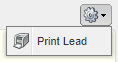
- You can Print the application by finding the Gear icon on the top right, then selecting Print Lead
- On the list on the left, click on the Finance Application lead you wish to view
- From there, you will be able to see all leads from the website. Depending on your permissions, you may also see credit applications in the list on the left hand side.
Was this article helpful?
That’s Great!
Thank you for your feedback
Sorry! We couldn't be helpful
Thank you for your feedback
Feedback sent
We appreciate your effort and will try to fix the article