This will step through setup of the Seez AI Chatbot on Lithia websites for each WSP. Any new WSP that isn't listed that we integrate, please include into the document for reference.
**Process to add integration**
Process:
1. acquire code from Seez
2. set up feed to Seez from FL.
3. implement Seez code
4. let Seez team know it has been added to site
5. ask Seez when they want us to remove existing chat code
6. remove old chat code
7. Inform Seez old chat removed and to wake up the AI
8. Test to ensure live and submit test lead and verify lead delivery to CRM
DDC - We can't implement the code or script. DDC has a 3P tool that integrates the AI Chatbot to the platform and will need to have a email request with the code the 3P provides.
DealerOn - We can integrate the script and html onto the platform, see below.
Example case >> [#383389] TXODECHR - START - Seez | AI Chatbot | L0121-0047 : Lithia IRC
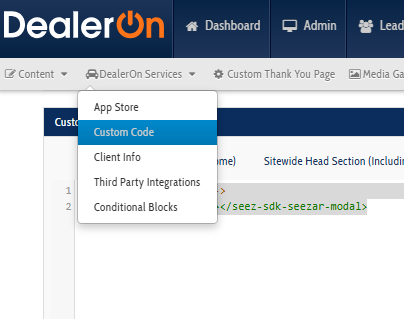
Added to site DealerOn Services > Custom Code
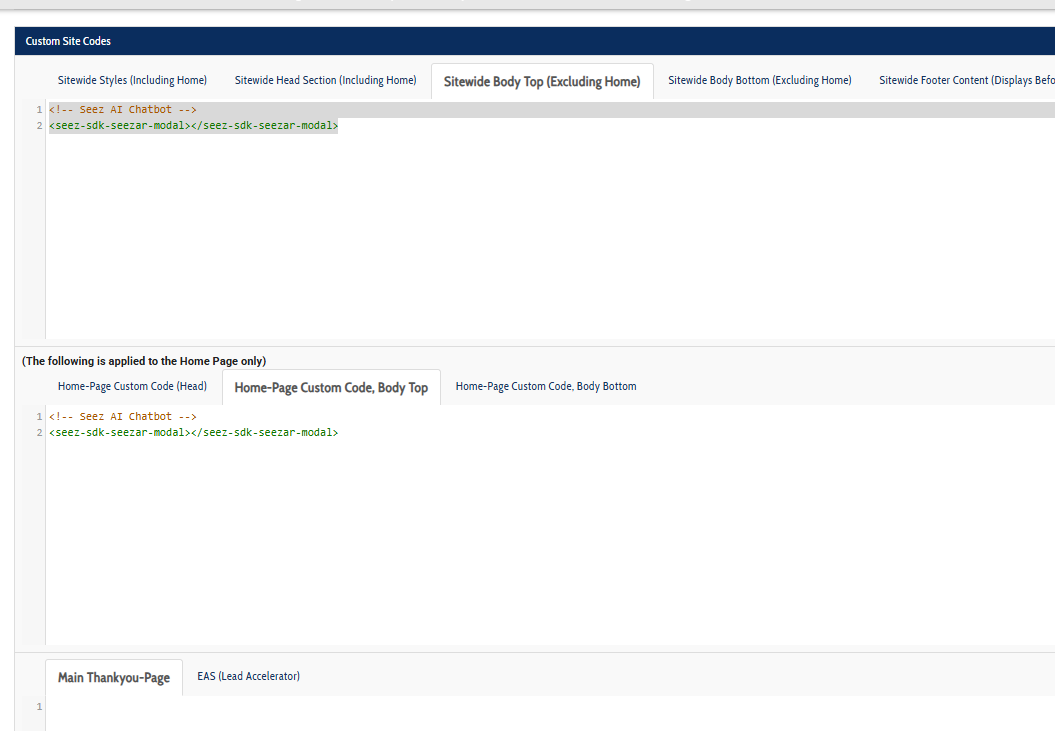
Added code below to Sitewide Body Top (Excluding Home) & Home-Page Custom Code, Body Top
<!-- Seez AI Chatbot -->
<seez-sdk-seezar-modal></seez-sdk-seezar-modal>
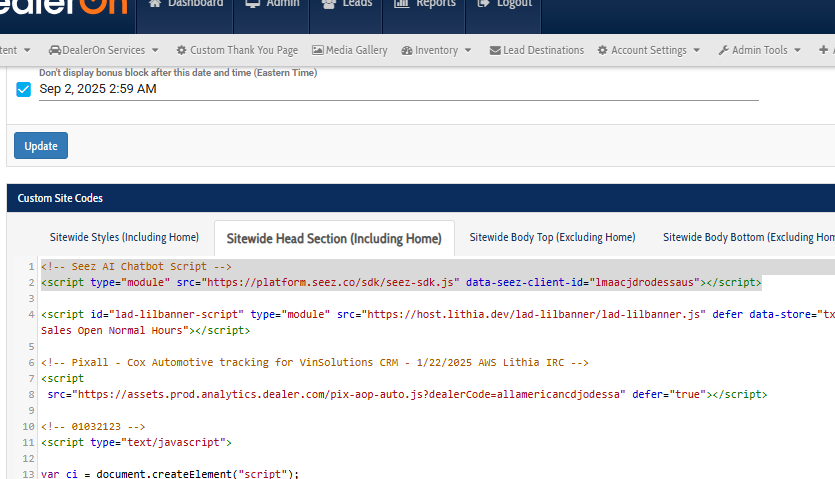
Add script to Sitewide Head Section (Including Home)
<!-- Seez AI Chatbot Script -->
<script type="module" src="https://platform.seez.co/sdk/seez-sdk.js" data-seez-client-id="lmaacjdrodessaus"></script>
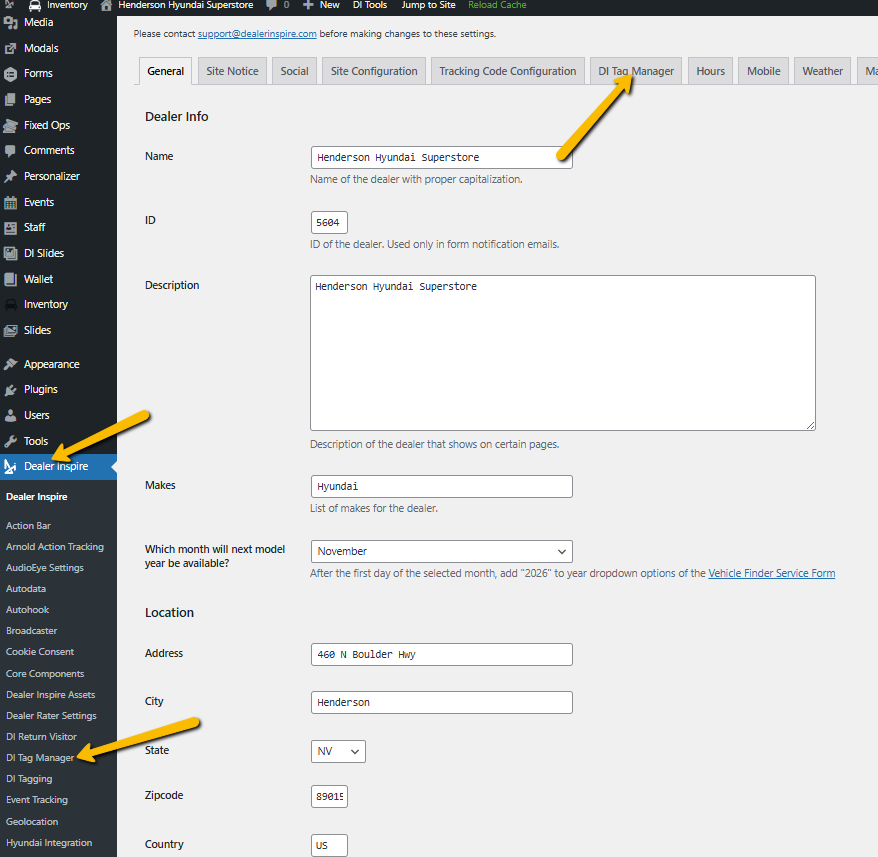
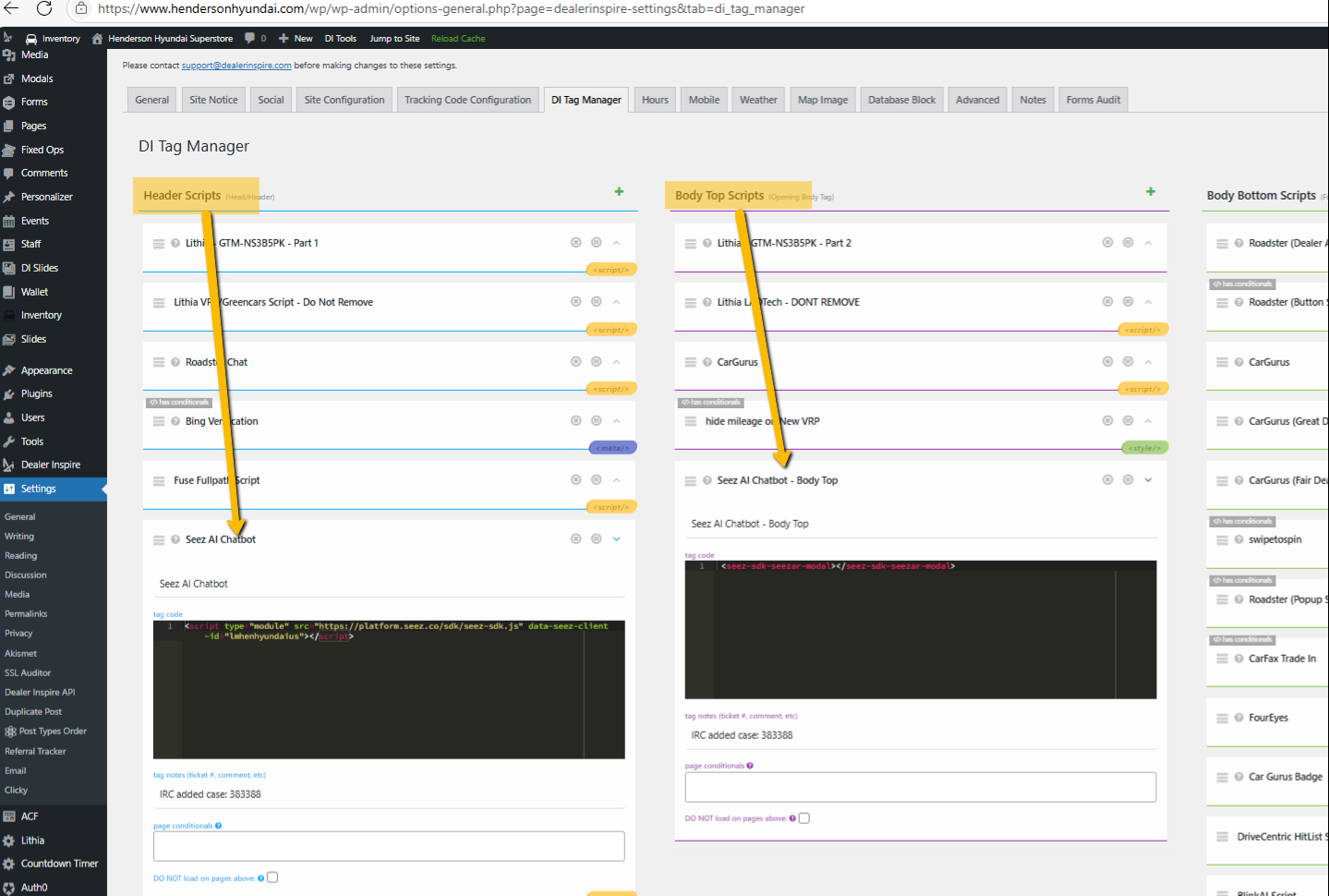
DealerInspire - Install needs to be done in DI Tag Manager and add script to Header Script and HTML added to Body Top sections.
Example case >> [#383388] NVHENHYU - START - Seez | AI Chatbot | L0541-0073 : Lithia IRC
Was this article helpful?
That’s Great!
Thank you for your feedback
Sorry! We couldn't be helpful
Thank you for your feedback
Feedback sent
We appreciate your effort and will try to fix the article